
A window manager for the Mac
Room for every window.
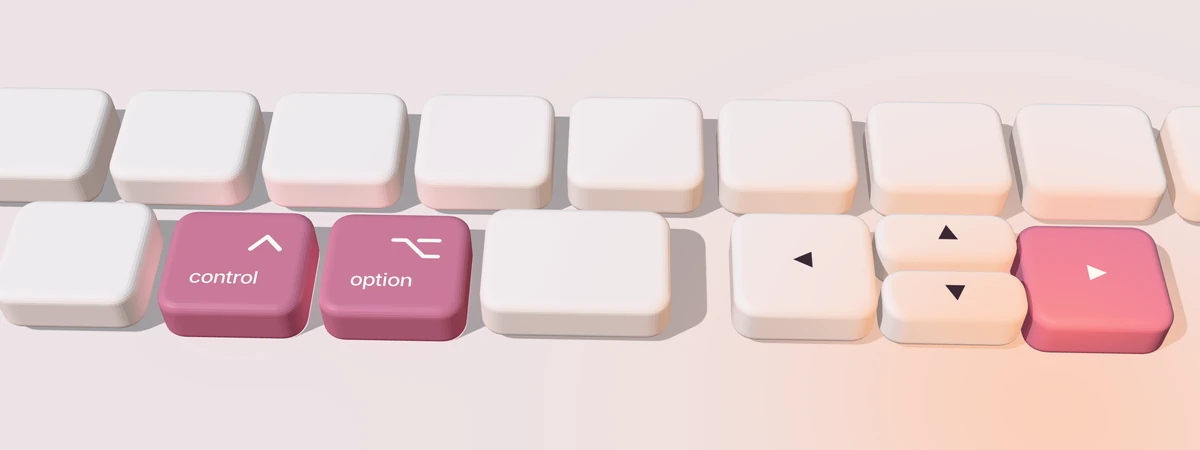
Hold Control + Option and tap an arrow. The window takes that half of the screen, and any window Panes put there before moves over.
Free, with an optional Pro upgrade · Requires macOS 14 or later

The Snap key
Two keys and an arrow.
Panes puts the halves and corners of your screen on the arrow keys. Hold Control + Option (the Snap key) and tap an arrow, and the window you're in fills that half. For a corner, tap a second arrow.
In a corner, pressing toward a side the window already touches stretches it along that side instead.
-
First tap
⌃⌥←
Left half
From anywhere on the screen, Left Arrow sends the window to the left half.
-
Then
⌃⌥↑
Top-left corner
From the left half, Up Arrow moves it into the top-left corner.
-
Then
⌃⌥←
Left half, stretched down
The window already touches the left edge, so Left Arrow stretches it down the whole left side.
No half or corner is more than two taps away. On a left half, tap Left Arrow again to make it two-thirds wide, and again for one-third. See every shortcut.
Make room
The others make room.
Snap a window into a spot Panes already gave another window, and the other window moves into whatever is left. Put a window in the top-left corner while another fills the left half, and that one steps down to the bottom-left corner.
If you close one of those windows, minimize it, drag it away or snap it somewhere else, a window next to it that Panes placed grows into the gap, though never to full screen.
Panes only moves windows it placed. Anything you arranged by hand stays where you put it, and windows on other desktops, minimized windows and hidden apps are never touched.
To keep other windows where they are, turn off “Adjust other windows to make room” in Settings.
In the right-hand window, press Control + Option + Left Arrow. It moves left, and the window that was there moves right.
Also in Panes
Other ways to move a window.
Layout Picker Control + Option + P Panes Pro
Press Control + Option + P to see every position as a small picture, then click one or press the letter under it. It's also the first item in the Panes menu, Choose Layout…
Side by Side Control + Option + S
Press Control + Option + S to put the window you're in on the left and the one you used just before it on the right. Press it again to swap them.
Drag to an edge
Drag a window by its title bar to an edge of the screen, and Panes shows where it will land before you let go. A side gives you a half and a corner a quarter. The top fills the screen, and the bottom gives you a third. Hold Command while dragging to skip snapping.
Thirds and two-thirds
Control + Option + D, F or G puts a window in the first, center or last third of the screen, and E or T gives it two-thirds.
Workspaces Control + Option + 1 to 9 Panes Pro
Save the windows on your current desktop as a Workspace and bring them back with Control + Option + 1 to 9, up to nine Workspaces in all. Windows on other desktops can't be saved, because macOS doesn't let apps see them. Go to that desktop and save a Workspace there instead.
Room above the Dock
Panes measures where your Dock sits, even the floating Dock on macOS 26, so snapped windows stop just above it.
macOS 14, 15 and 26
Panes works on macOS 14 Sonoma, 15 Sequoia and 26 Tahoe. It reads the settings for the window snapping built into macOS and never changes them.
Little touches
- Hold the Snap key for a moment to see every Panes shortcut on one sheet.
- After each snap, the menu bar icon briefly shows where the window went.
- Tap an arrow when a window can't go any further, and a small note says so: “Already at the bottom.”
- The Panes menu keeps count, like “12 snaps today · 340 in November.”
- A soft snap sound, off until you turn it on.
Finding Panes
Menu bar icons get lost.
Panes opens from a shortcut, the Dock or Spotlight as well as the menu bar, and it tells you if the notch is hiding its icon.
- Control + Option + ,
- Press it in any app to open the Panes window. Press it again to close it.
- The Panes window
- It always opens on Home, which shows whether Panes is working, your Snap key, Choose Layout…, Side by Side and your Workspaces.
- The menu bar icon
- The small sash window near the top right of your screen. Its menu has every snap, with Choose Layout… at the top.
- The Dock icon
- Panes can keep an icon in your Dock as well, and either icon can be hidden in Settings. If the notch ever covers the menu bar icon, Panes tells you and offers to show the Dock icon.

Price
Free, except two things.
Panes Pro adds the Layout Picker and Workspaces. It's $4.99 for the first year, then renews at $9.99 a year. If you cancel, Pro keeps working on the version you have, and you stop getting new versions. Pro goes on sale soon. Until it does, the Layout Picker and Workspaces are free in the current version of Panes.
Panes
Free
- Halves, corners, thirds and two-thirds, all from the keyboard
- Windows that Panes placed make room for each other
- Drag to an edge, Side by Side, and moving windows to your other display
- Your choice of Snap key and every little touch
Panes Pro
$4.99first year, then $9.99 a year
- Everything in Panes
- The Layout Picker on Control + Option + P, with every position as a small picture
- Workspaces, up to nine saved sets of windows you bring back with Control + Option + 1 to 9
- One license for up to three of your Macs
Your license key comes by email. Paste it into Panes Settings to turn on Pro. You get an email before it renews, and cancelling is one click.
Questions
Before you install Panes.
- Why does Panes need Accessibility permission?
- macOS only lets an app move another app's windows after you allow it in System Settings ▸ Privacy & Security ▸ Accessibility. Panes uses it to read window positions, sizes and titles, and to move windows. It never reads what you type or what's inside your windows.
- Does Panes work with the window snapping built into macOS?
- Yes. Panes only reads those macOS settings and never changes them. On macOS 15 and later, if dragging a window to an edge also snaps it in macOS, you may see two previews. Panes tells you once and offers to open Desktop & Dock settings, where you can turn the macOS version off. Or turn off dragging in Panes instead.
- Which Macs does Panes work on?
- Macs running macOS 14 Sonoma, 15 Sequoia or 26 Tahoe, with or without a notch, and with one display or several. Panes is tested on Macs with Apple silicon. It also runs on Intel Macs, though those get less testing.
- Does Panes collect any data?
- Only what a Pro license needs. There's no account and no analytics, and the free version makes no network connections. Panes Pro goes online only to turn on your license key and to check it about once a month. Turning it on sends the key and your Mac's name to Dodo Payments, the store that sells it, and the monthly check sends the key with the activation ID Dodo gave back. Pro keeps working when you're offline. Window titles are kept only in Workspaces you save, on your Mac.
- Can I use different keys?
- Yes. In Settings ▸ Shortcuts you can switch the Snap key to Control + Shift, a good choice if you use VoiceOver, which uses Control + Option itself. Or pick Control + Option + Command. Every Panes shortcut moves with it.
- How do I snap a window to half the screen on a Mac?
- With Panes, hold Control + Option and tap Left Arrow or Right Arrow. Tap Up Arrow or Down Arrow straight after to move it into a corner. macOS 15 and later can do halves on its own with Fn + Control + an arrow, but it has no shortcut for a single corner. The guide to snapping windows on a Mac covers both.
- Is Panes free?
- Yes, with no time limit. Halves, corners, thirds, Side by Side, dragging to an edge and moving windows between displays are all free. Panes Pro adds the Layout Picker and Workspaces for $4.99 the first year, then $9.99 a year.
- How is Panes different from Rectangle or Magnet?
- All three put windows in halves of the screen from the keyboard. Panes differs in two ways. When you snap a window where Panes already put another one, that window moves into the space that's left. And Control + Option + comma opens Panes from any app, so you can always find it again. Rectangle is free and open source, and Magnet is a one-time purchase on the Mac App Store. The comparison page has the details.
- How do I install Panes?
- Download the zip, open it and drag Panes into your Applications folder. Open Panes, and when it asks, turn it on in System Settings ▸ Privacy & Security ▸ Accessibility. Every download is signed with an Apple Developer ID and notarized by Apple. Panes isn't in the Mac App Store, so new versions come from this site.